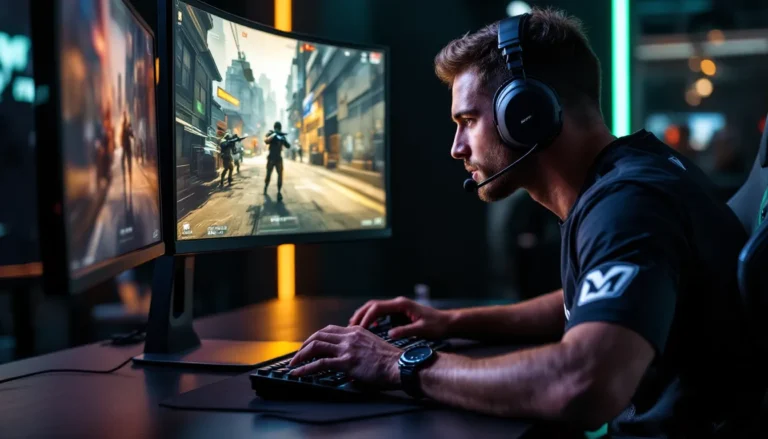
You’re deep into a boss fight, dodging attacks, health bar nearly depleted on your enemy, and then your screen goes black. No error message. No warning. Just an instant return to desktop. If you’ve experienced this, you know the unique frustration of a CTD. It’s one of gaming’s most annoying technical issues, capable of ruining immersion, costing progress, and even making certain titles nearly unplayable if it happens frequently enough.
CTD problems plague PC gamers especially, but they’re not exclusive to any one platform or genre. From heavily modded open-world RPGs to competitive shooters mid-match, crashes to desktop can strike anywhere. Understanding what causes them and how to fix them can mean the difference between a smooth gaming session and constant interruptions. This guide breaks down everything gamers need to know about CTD in 2026, what it means, why it happens, and how to troubleshoot it effectively.
Table of Contents
ToggleKey Takeaways
- CTD meaning gaming stands for “Crash to Desktop,” a frustrating technical issue where games abruptly close and return players to their desktop without warning or proper shutdown.
- Outdated graphics drivers, insufficient RAM/VRAM, software conflicts, corrupted game files, overclocking, and incompatible mods are the most common causes of CTD problems in PC gaming.
- Update graphics drivers directly from NVIDIA or AMD websites using clean installations, verify game files through your launcher, and disable overlays and background applications as your first troubleshooting steps.
- Bethesda titles like Skyrim and Fallout 4, Cyberpunk 2077, and Ark: Survival Evolved are notorious for CTD issues, often requiring careful mod management and driver updates to maintain stability.
- Prevent most CTD occurrences by maintaining hardware cleanliness, monitoring system temperatures and resource usage, avoiding aggressive overclocking, and managing mods conservatively with regular compatibility checks.
- When standard troubleshooting fails, gather your full system specs, driver versions, crash logs, and patterns before contacting developer support or searching community forums for configuration-specific solutions.
What Does CTD Stand For in Gaming?
CTD stands for Crash to Desktop. It’s a technical term used when a game abruptly closes and returns the player directly to their operating system’s desktop without warning or a proper shutdown process.
Unlike a freeze (where the game locks up but remains on screen) or a blue screen error (which crashes the entire system), a CTD is specific to the game application itself. One moment you’re playing, the next you’re staring at your desktop icons. Sometimes you’ll get a brief error dialog or a crash report prompt, but often there’s nothing, just an instant exit.
The term is most commonly used in PC gaming communities, where the open nature of the platform makes crashes more variable and frequent compared to the more controlled console environments. It’s become shorthand in forums, Reddit threads, and Discord servers when players troubleshoot issues or report bugs to developers.
Why CTD Is One of the Most Frustrating Gaming Issues
CTDs land somewhere between annoying and rage-inducing depending on when they hit. Lose an hour of unsaved progress in a game with infrequent checkpoints? That stings. Get booted from a competitive ranked match and eat a penalty for “leaving”? Even worse.
What makes CTDs particularly maddening is their unpredictability. Unlike a reproducible bug you can learn to avoid, crashes often seem random. You might play for three hours without issue, then CTD five times in twenty minutes doing the same activity. This inconsistency makes them hard to diagnose and even harder to prevent.
The lack of clear feedback compounds the frustration. A game that crashes with a specific error code gives you something to Google. A silent CTD leaves you guessing, was it the driver update? That new mod? The overclock you forgot about? Without information, every fix becomes trial and error, and that eats into the time you’d rather spend actually playing.
Common Causes of CTD in PC Games
Understanding what triggers CTDs helps narrow down solutions. While every crash has its own circumstances, most fall into a handful of categories.
Outdated or Corrupted Graphics Drivers
Graphics drivers act as the bridge between your GPU and game software. When they’re outdated, corrupted, or improperly installed, that bridge can collapse mid-game. Driver issues are among the top causes of CTD, especially after major Windows updates that can conflict with existing graphics software.
NVIDIA and AMD both push frequent driver updates, often optimized for new releases. Running drivers that are several versions behind, or conversely, installing a brand-new driver that hasn’t been fully tested, can both cause stability problems. Clean installations of drivers typically work better than simple updates overlaid on old files.
Insufficient System Resources (RAM and VRAM)
Modern games are resource-hungry, and when they run out of available RAM or VRAM, crashes follow. This often happens in open-world games with streaming assets, where memory demands fluctuate based on what’s being loaded.
If you’re running 8GB of system RAM in 2026, you’re cutting it close for AAA titles. Similarly, GPUs with 4GB or less of VRAM struggle with high-resolution textures and ultra settings. The game might launch fine, but once memory maxes out during intense sequences, CTD becomes likely. Background applications consuming RAM make this worse.
Software Conflicts and Background Applications
Overlays, monitoring software, RGB control programs, and other background applications can conflict with games. Discord overlay, GeForce Experience, MSI Afterburner, and even antivirus programs have all been known to cause CTDs in specific titles.
Sometimes it’s about resource competition, the app wants CPU cycles the game needs. Other times it’s about software hooks that interfere with how the game accesses system resources. Certain anti-cheat systems are particularly sensitive to monitoring tools, triggering crashes if they detect anything unusual.
Corrupted Game Files or Incomplete Installations
Game files can become corrupted during download, installation, or updates. A single missing or damaged file can destabilize the entire application. This is common after interrupted updates or when storage drives develop errors.
Most modern launchers (Steam, Epic, Xbox app) include file verification tools specifically because this problem is so prevalent. Mods can also replace or modify core game files, and if those modifications aren’t clean or compatible with the current game version, CTDs result.
Overclocking and Hardware Instability
Overclocked CPUs and GPUs push hardware beyond factory specifications for extra performance. When that overclock isn’t perfectly stable, crashes happen, sometimes during stress tests, but often during actual gaming when sustained loads expose instability.
Even factory overclocked components can cause issues if your power supply can’t deliver clean, consistent power or if cooling isn’t adequate. Heat throttling can trigger crashes just as easily as an unstable overclock. Many troubleshooting guides for CTDs include hardware stability testing as a fundamental step.
Incompatible Mods and Custom Content
The modding community creates incredible content, but mods are also a frequent CTD culprit. Incompatible mod combinations, outdated mods running on new game versions, or poorly coded scripts can all cause crashes.
Games like Skyrim, Fallout 4, and Cyberpunk 2077 are notorious for this. Load orders matter, dependencies must be met, and even minor conflicts between mods can create cascade failures. The more mods you run, the more likely something will conflict, and tracking down the problem mod can take hours.
CTD on Console Gaming: Does It Happen?
Console gamers aren’t immune to crashes, but they’re less likely to experience true “crash to desktop” events since consoles don’t have traditional desktops. Instead, console crashes typically boot players to the system dashboard or home screen, or they trigger a full console crash requiring a restart.
PS5 and Xbox Series X
|
S have more sophisticated error reporting than their predecessors, often providing error codes when games crash. These systems also benefit from standardized hardware, developers optimize for known specs, reducing compatibility issues that plague PC gaming.
That said, certain games have gained reputations for console instability. Cyberpunk 2077 at launch crashed frequently on PS4 and Xbox One. Ark: Survival Evolved has been crash-prone across multiple console generations. Usually these issues stem from memory management problems, game bugs, or poor optimization rather than the hardware conflicts common on PC.
When console crashes do occur repeatedly, solutions are more limited: rebuilding databases, reinstalling games, or waiting for developer patches. You can’t update drivers or adjust overclock settings like on PC.
How to Troubleshoot and Fix CTD Issues
Fixing CTDs requires methodical troubleshooting. Start with the most common solutions and work toward more complex ones.
Update Your Graphics Drivers
This should always be your first step. Visit the NVIDIA, AMD, or Intel website directly rather than relying on Windows Update for graphics drivers. Download the latest stable driver for your specific GPU model.
Perform a clean installation when possible, both NVIDIA and AMD installers offer this option. It removes old driver files before installing new ones, preventing conflicts. After installation, restart your system before launching the game. If the latest driver causes problems (it happens), roll back to the previous stable version.
Verify and Repair Game Files
Every major PC gaming platform includes file verification:
- Steam: Right-click game → Properties → Installed Files → Verify integrity of game files
- Epic Games Launcher: Library → Click three dots on game → Verify
- Xbox App: Library → Game tile → More options → Manage → Files → Verify and Repair
This process checks files against the original installation and redownloads anything corrupted or missing. It takes a few minutes but catches a surprising number of problems. Run verification after any crash, especially if your game auto-updates.
Disable Overlays and Close Background Programs
Turn off in-game overlays from Discord, Steam, GeForce Experience, and Xbox Game Bar. Disable them in each application’s settings, then restart the game. If crashes stop, re-enable them one at a time to identify the culprit.
Close unnecessary background applications before launching demanding games. Check Task Manager (Ctrl+Shift+Esc) for resource hogs. RGB control software, monitoring tools, and browser tabs can all consume RAM and CPU cycles better used by your game. Temporary antivirus disabling (at your own risk) can help diagnose if security software is interfering.
Adjust In-Game Graphics Settings
If you’re pushing graphics settings near or beyond your hardware’s capabilities, dialing them back can prevent CTDs caused by resource exhaustion. Start by reducing settings that consume VRAM:
- Texture Quality: Drop from Ultra to High
- Shadow Quality: Lower by one or two settings
- Resolution: Consider dropping from 4K to 1440p if VRAM is limited
- Ray Tracing: Disable if your GPU is struggling
Cap your framerate if you’re not already. Unlocked framerates can cause instability in some games, especially older titles not designed for high refresh rates. Many gaming performance guides recommend a 60 FPS or 144 FPS cap depending on your monitor.
Check for Overheating and Hardware Issues
Monitor your temperatures using tools like HWInfo64 or MSI Afterburner. GPUs shouldn’t exceed 85°C under load, and CPUs should stay under 90°C. If you’re hitting thermal limits, crashes are likely.
Clean dust from fans and heatsinks, thermal throttling or emergency shutdowns can manifest as CTDs. Reapply thermal paste if your system is several years old. Ensure case airflow is adequate and that all fans are functioning. For competitive players tracking their esports performance stats, hardware stability is non-negotiable.
Reinstall or Remove Problem Mods
If you’re running mods, disable them all and test the vanilla game. If crashes stop, re-enable mods gradually to isolate the problem. Check mod pages for compatibility notes with your game version, many mods break after patches.
Use mod managers like Vortex or Mod Organizer 2 rather than manual installation. These tools handle dependencies, load order, and conflicts more reliably. Read mod descriptions carefully for known conflicts and required patches. When in doubt, start a fresh save without mods to rule out save file corruption.
Games Most Notorious for CTD Problems
Some games have earned reputations as CTD factories, often due to engine limitations, poor optimization, or heavy modding.
Bethesda titles (Skyrim, Fallout 4, Fallout 76) top many lists. The Creation Engine has stability issues even before mods enter the picture. Add dozens of mods, and CTDs become almost inevitable without careful load order management and compatibility patches.
Cyberpunk 2077 launched with widespread crash issues across all platforms, though CD Projekt Red has significantly improved stability through patches. Version 2.0 and the Phantom Liberty expansion in 2023 addressed many problems, but some players still report CTDs, particularly when using mods.
Total War games, especially Warhammer III, have been criticized for campaign map crashes and end-turn CTDs. Creative Assembly has patched many issues, but the complexity of simultaneous AI calculations still causes problems for some configurations.
Ark: Survival Evolved crashes frequently enough that the community treats it as almost expected. The game’s ambitious scope and demanding resource requirements push many systems beyond stable limits.
New World experienced significant CTD issues at launch, with some crashes even bricking certain GPUs, an extreme case that made headlines. Amazon Games has since patched most critical issues, but stability remains inconsistent for some players.
Worthwhile noting: many CTD problems are configuration-specific. A game that runs perfectly on one system might crash constantly on another with seemingly similar specs.
Preventing CTD: Best Practices for Stable Gaming
Prevention beats troubleshooting. These habits reduce CTD frequency:
Keep drivers updated regularly. Set a monthly reminder to check for graphics driver updates, especially before major game launches. Subscribe to NVIDIA or AMD driver release notifications.
Don’t overclock for gaming unless you’ve thoroughly tested stability. Run stress tests like Prime95 (CPU) and FurMark (GPU) for extended periods. If you’re not willing to spend hours validating stability, stick with stock settings.
Close unnecessary background applications before launching games. Make this a habit, especially for competitive titles where every resource matters.
Manage mods conservatively. Read compatibility notes, check update dates, and don’t install everything that looks interesting. Quality over quantity prevents conflicts.
Monitor your system resources. Use Task Manager or dedicated tools to track RAM and VRAM usage during gaming. If you’re consistently hitting 90%+ usage, consider hardware upgrades or lower settings.
Maintain your hardware. Clean dust quarterly, monitor temperatures, and ensure adequate cooling. Replace thermal paste every 2-3 years on high-performance systems.
Wait a few days after major game patches before updating if you’re running mods. This gives mod authors time to update their work for compatibility.
Keep at least 15-20% of your storage drive free. Full drives can cause performance issues and increase the likelihood of file corruption.
When to Seek Developer Support or Community Help
If you’ve exhausted standard troubleshooting without success, it’s time to reach out. Developer support can access crash logs and telemetry you can’t see, sometimes identifying issues immediately.
Before contacting support, gather information:
- Full system specs: CPU, GPU, RAM amount and speed, storage type
- Driver versions: Graphics, chipset, and any peripheral drivers
- Game version and patch number: Usually found in settings or launcher
- Crash frequency and patterns: Does it happen at specific points or randomly?
- Recent changes: New hardware, driver updates, mods installed
Most games generate crash logs or dump files. Check the game’s installation folder or Documents folder for logs. Include these when contacting support, they contain diagnostic data that helps developers identify problems.
Community forums and subreddits are invaluable. Search for your specific game plus “CTD” and your GPU model. Chances are someone else experienced the same issue and found a fix. Popular gaming communities on Reddit, Steam forums, and Discord servers often crowdsource solutions faster than official support channels.
For persistent crashes that no one else reports, consider hardware diagnostics. Run MemTest86 to check RAM, CrystalDiskInfo for drive health, and stress tests for CPU and GPU. Sometimes what looks like a game problem is actually failing hardware.
Conclusion
CTD issues might be frustrating, but they’re rarely unsolvable. Most crashes trace back to drivers, resource limitations, software conflicts, or hardware instability, all fixable with systematic troubleshooting. The key is patience: test one solution at a time, document what you try, and don’t assume the first fix that seems to work has actually solved the problem long-term.
For PC gamers, some level of technical maintenance comes with the territory. Keeping drivers updated, monitoring system resources, and being thoughtful about mods and overclocks prevents most CTDs before they happen. When crashes do occur, the troubleshooting skills you develop become valuable across your entire gaming library.
The good news is that developers in 2026 are more responsive to stability issues than ever before. Live service games receive frequent patches, and community feedback loops are shorter. While CTDs will probably never disappear entirely from PC gaming, they’re becoming less frequent and easier to diagnose. Until then, keep your drivers current, your temps cool, and your mod list reasonable.